

Using the CLI
This guide walks through common ouster-cli commands for running the Pose Optimizer end-to-end with the bundled loop.osf sample and an optional constraints.json file. Start with ouster-cli source loop.osf pose_optimize --help to see the full usage text for the pose_optimize subcommand, including required arguments and optional flags.
ouster-cli source loop.osf pose_optimize --help
Pose Optimizer
To run the Pose Optimizer with a specific set of constraints, use a SLAM-processed OSF file and a constraint JSON file passed via --config:
ouster-cli source loop.osf pose_optimize --config constraints.json optimized_loop.osf
The above command applies the constraints defined in constraints.json, runs optimization, and outputs the refined trajectory in optimized_loop.osf.
Run with Viz
You can also visualize the applied constraints and the refinement of the trajectory during the optimization process:
ouster-cli source loop.osf pose_optimize --config constraints.json --viz optimized_loop.osf
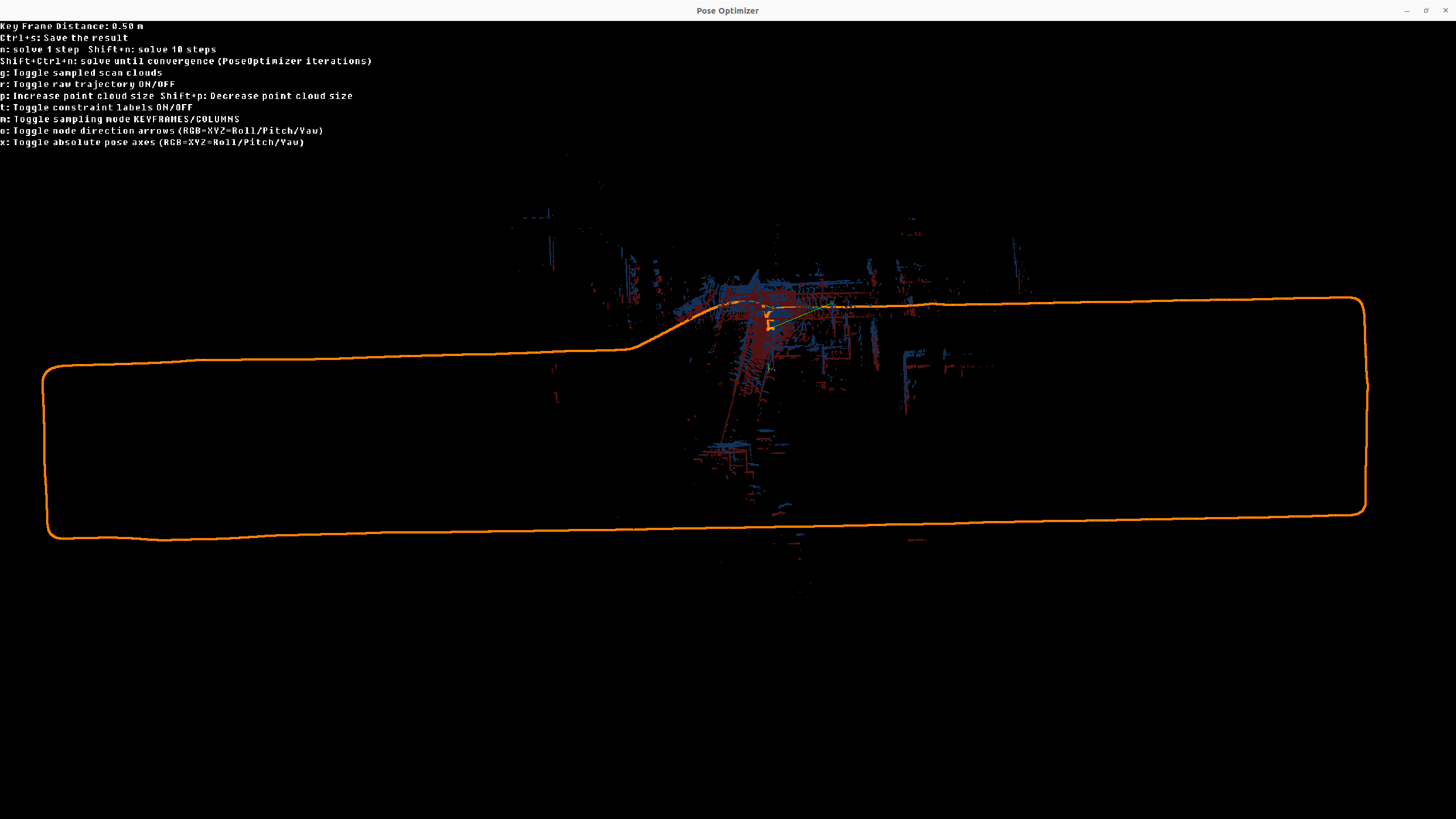
Pose Optimizer Viz displaying the bundled loop.osf sample with the Pose Optimizer getting-started constraints.
Automatic GPS Constraints
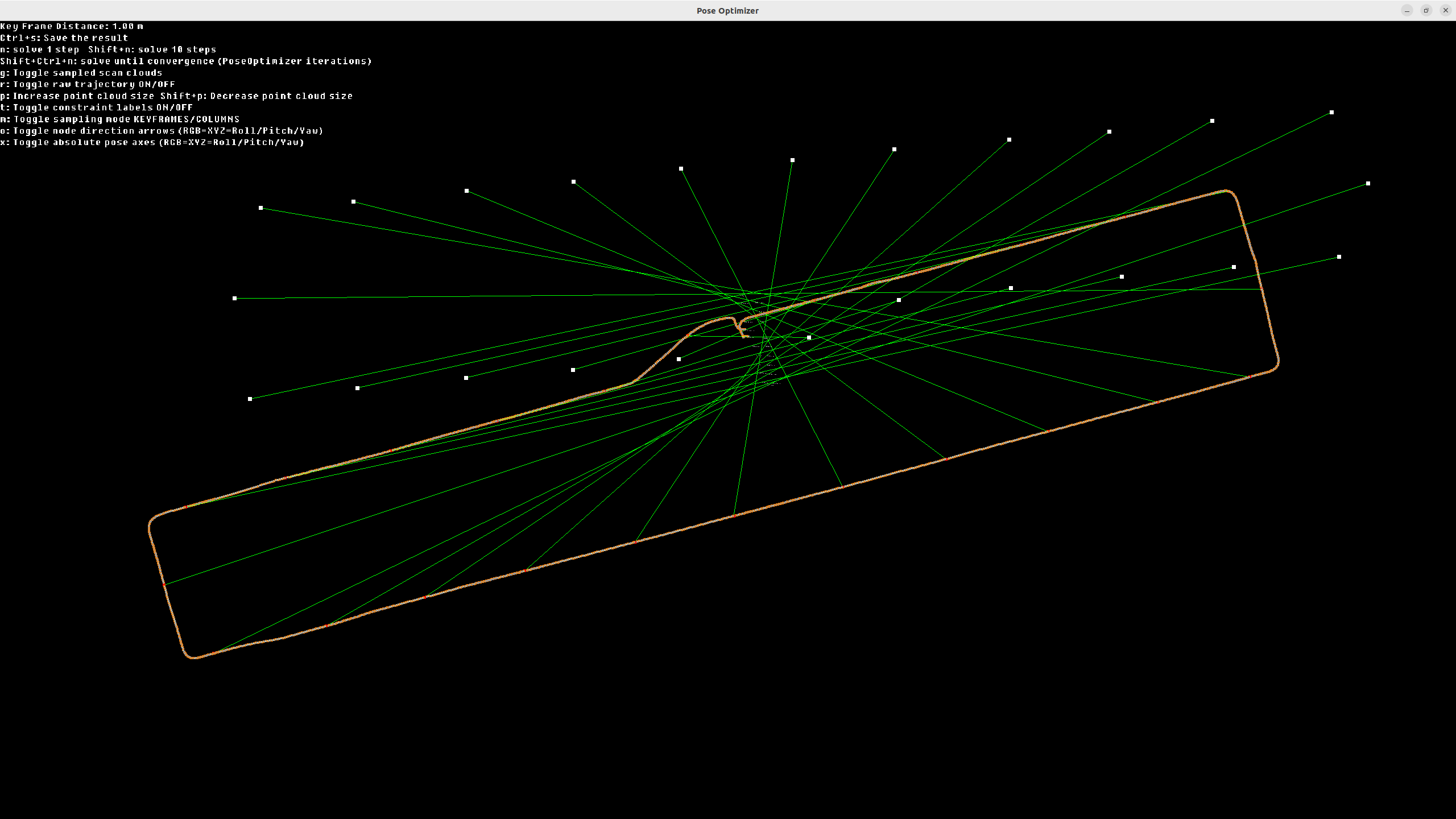
If your OSF includes GPS data, you can let the CLI generate absolute pose
constraints automatically with --auto-gps. Auto-generated GPS constraints can be used on
their own or combined with a manual constraints file. If you combine
--auto-gps with --config, remove any ABSOLUTE_POSE constraints from
the JSON to avoid conflicts with the generated GPS constraints.
ouster-cli source loop.osf pose_optimize --auto-gps --viz optimized_loop.osf
ouster-cli source loop.osf pose_optimize --auto-gps --config constraints.json --viz optimized_loop.osf
Automatic Loop Closures
Use --auto-loop to detect loop-closure pose constraints from the current
trajectory. Under the hood the CLI calls
PoseOptimizer.add_relative_loop_constraints() and exposes the same tuning
parameters through the following flags:
Flag |
Default |
Description |
|---|---|---|
|
50.0 |
Minimum traveled distance (meters) between successive loop-closure additions. |
|
auto |
Spatial hash grid cell size (meters). Auto-calculated from the trajectory span if omitted. |
|
0.6 (batch) / 0.0 (viz) |
Minimum ICP confidence score in |
ouster-cli source loop.osf pose_optimize --auto-loop optimized_loop.osf
ouster-cli source loop.osf pose_optimize --auto-loop --viz optimized_loop.osf
Combined GPS + Loop Workflow
When --auto-gps and --auto-loop are both passed in batch mode, the CLI
first adds GPS constraints and solves once before running loop detection. That
gives loop search a better starting trajectory, then the optimizer solves again
with the added loop closures.
With --viz, the GPS constraints are still added before the viewer opens,
but loop detection is deferred. Press L in the visualizer to generate loop
closures from the current trajectory after inspecting or adjusting the initial
alignment. The initial GPS alignment transform is applied to both the optimized
trajectory and the raw (pre-optimization) overlay so they stay visually
registered.
ouster-cli source loop.osf pose_optimize --auto-gps --auto-loop optimized_loop.osf
ouster-cli source loop.osf pose_optimize --auto-gps --auto-loop --viz optimized_loop.osf
Visualization Point Cloud with Refined Trajectory
When using --viz, saving is a separate step: press Ctrl + S in the viewer to write the optimized result to the mentioned
filename such as optimized_loop.osf.
Once you have an output OSF, you can use the viz command to visualize and validate
the point cloud with the refined trajectory:
ouster-cli source loop.osf viz --map
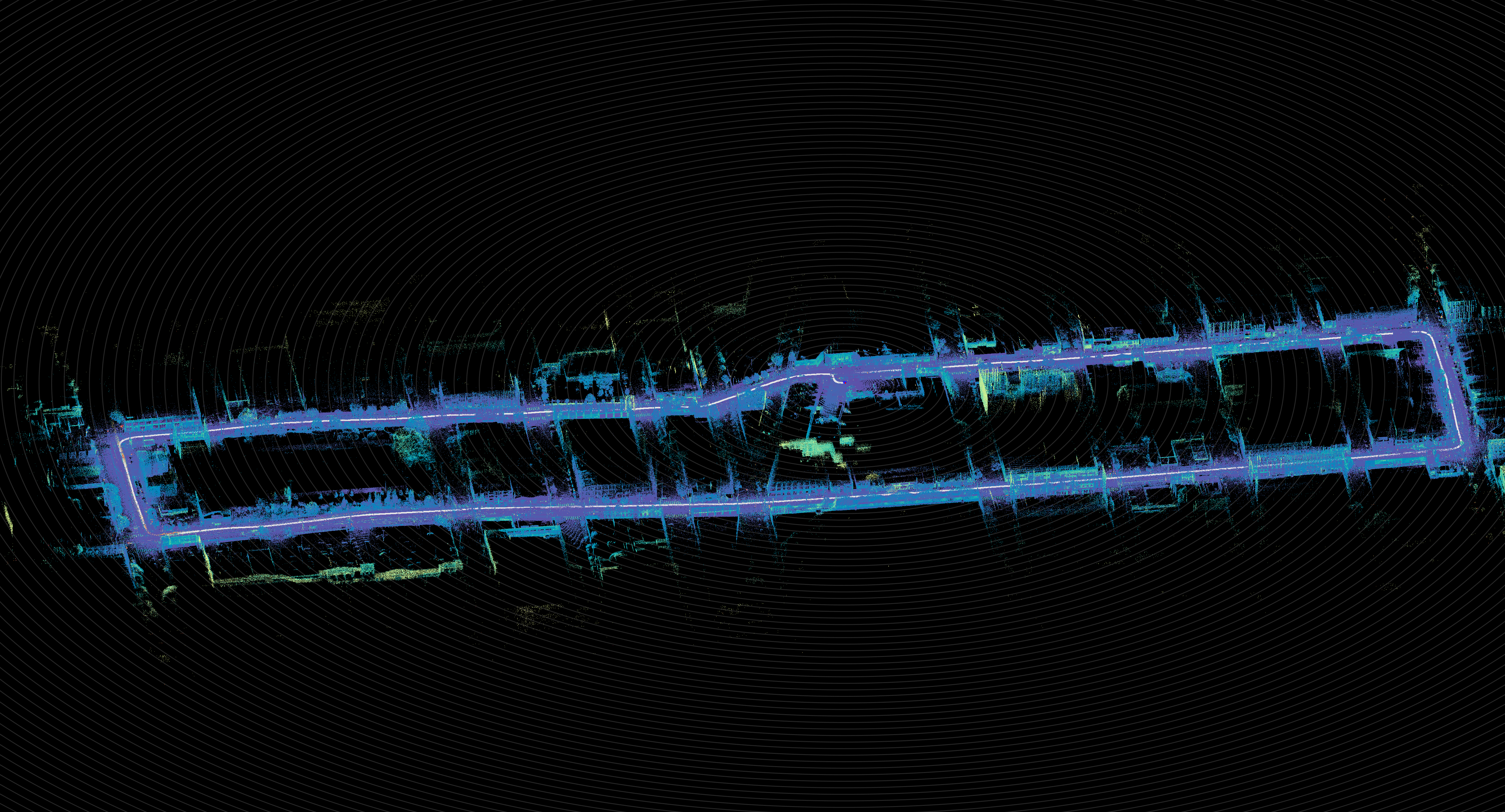
Point Cloud with refined trajectory.