

Visualizing LidarFrames
The Ouster visualization toolkit is written in C++ with Python bindings for Python functionality. It consists of the following:
simple-viz(viz.SimpleViz): the default Python application visualizer, which can also be used as an entrypoint for more sophisticated custom point cloud visualizationsouster_viz: the core C++ libraryouster.sdk.viz: the Python module for the bindings
Using ouster-cli is a fastest way to visualize data from a connected sensor, recorded PCAP,
or OSF files with SLAM poses. Refer to Quickstart Guide for details.
Programmatic use
If you want to visualize a LidarFrame or a list of LidarFrame objects using the python API, you can use
lf_show method. Here is a code snippet that shows how it can be used to
visualize a list of LidarFrame:
from ouster.sdk import open_source
from ouster.sdk import viz

source_url = ""  # path to pcap/osf or sensor hostname

# Load a LidarFrame from a given source (could be a pcap file, OSF file, or a live sensor)
frame_set_source = open_source(source_url)
source_iter = iter(frame_set_source)
frames = next(source_iter)
viz.lf_show(frames)

idx = 10 # example index
viz.lf_show(frame_set_source[idx])  # where idx is a valid index value into the source
This will open an interactive window displaying the LidarFrame as PointCloud.
Additionally, lf_show accepts a list or slice of LidarFrame(s), the following snippet shows this use:
# Visualize the first 3 frames simultaneously
viz.lf_show([frame_set_source[0][0], frame_set_source[1][0], frame_set_source[2][0]])

# Visualize a range of frames from the frame_set_source
viz.lf_show(frame_set_source[0:10])
In the first example will pass a list of frames to lf_show, these frames will appear in SimpleViz window
at the same time, you can toggle each frame on/off within SimpleViz using CTRL+1 through CTRL+9 which is very helpful
to compare frames side by side. It is worth noting that the frames don’t need to be from the same source.
In the second example, we are passing a slice of frames to lf_show, this will visualize the frames
within the slice sequentially. You can press the spacebar to unpause the playback or use the
<, > keys to step back and forth between frames.
For more advanced visualization you can explore a programmatically accessible viz.PointViz
API below:
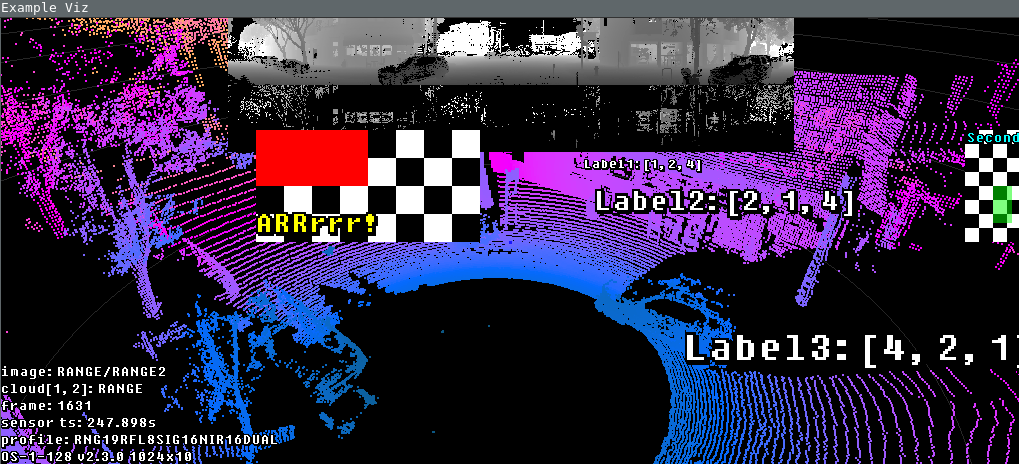
PointViz with Image, Label and masks applied