Troubleshooting
Accessing logs
The last 7 days of Gemini Detect logs can be accessed by clicking the View
Logs button in the Diagnostics tab.

View Logs Button
The logs page lists all log files from the last 7 days. Files follow the format
{service}-{day_of_week}.log. Where the service is one of the various docker
containers which make up the Gemini Detect system. If logs are being supplied
to Ouster for support, please download a log from each service on the day of
the week the issue occurred. For example, if the issue occurred on a Tuesday,
download the logs for each service with the format {service}-tue.log.
Simply clicking the filename will download the log file.
Note
Logs are stored in UTC time and this should be taken into account when determining which logs to download.
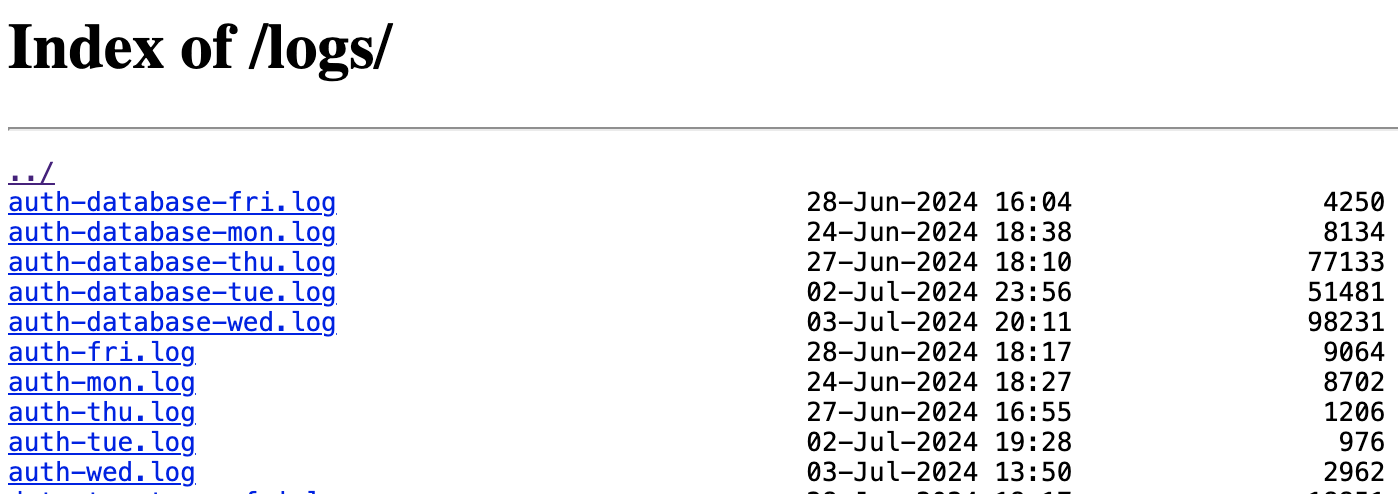
Logs Page
Alert Data
Ouster Gemini Detect exposes alerts to the user to communicate when the system is in an error state or when an aspect of the system should be investigated. The user can query the alerts through the RESTful interface as well as view them through the web page. The underlying format of the alerts is in JSON and is very similar to the format defined in the Ouster Firmware User Manual.
The table below lists the alerts in Detect along with their alert code, description, and guidance on what could be happening to cause it.
Alert Code |
Name |
Severity |
Description/Possible causes |
Recommended action |
|---|---|---|---|---|
0x2000001 |
Lidar timeout |
CRITICAL |
The system is not receiving data from a lidar that’s been configured. Possible causes are the UDP destination has been changed, the network infrastructure has been severed, or the lidar hardware has failed. |
Investigate the state of the lidar by navigating to the IP address directly (If the lidar is directly connected to the catalyst, use the sensor proxy feature in the UI). Check the UDP destination address and confirm it’s pointing to the Catalyst. The lidar’s serial number will be in this alert’s source information. |
0x2000002 |
Dropping lidar data |
WARNING |
The system is not keeping up with lidar data it’s ingesting |
Check to make sure your compute device is within the recommended specifications for the number of lidars in your setup. |
0x2000003 |
Dropping cluster |
WARNING |
The system is not able to process clusters fast enough |
This is most likely an issue with the number of moving objects the system is trying to track in the scene. Check to see if this number is correlated with a high volume of moving objects |
Alert Code |
Name |
Severity |
Description/Possible causes |
Recommended action |
|---|---|---|---|---|
0x2000004 |
Cluster delta over threshold |
WARNING |
The timestamps of data from all lidar sources are over the configurable threshold. This will likely cause issues with tracking since the system is attempting to process data from multiple lidars which are unsynchronized. |
Make sure all sensors have a stable fast connection to the Catalyst. If this does not resolve the issue, contact customer support about putting the connected sensors in phase lock. |
0x2000005 |
Websocket client behind |
WARNING |
A client connected to the websocket server is not keeping up with the data behind sent. The system is dropping data as a result |
The source information field of this alert will contain the IP address of the client which is not keeping up. Check the network bandwidth between the Catalyst and this client |
0x2000006 |
TCP client behind |
WARNING |
A client connected to the TCP server is not keeping up with the data behind sent. The system is dropping data as a result |
The source information field of this alert will contain the IP address of the client which is not keeping up. Check the network bandwidth between the Catalyst and this client |
0x2000007 |
Invalid packet source |
ERROR |
The system is receiving data from an an expected IP address on a network port configured to receive lidar data |
The cause of this alert is most likely a configuration issue with one of the lidars. This occurs when a lidar was previously configured to send it’s data to a Catalyst unit but the Catalyst unit is expecting data from another lidar now on that port. Navigate to the IP addresses of all lidars on the network and confirm any unused lidars are not sending their data to the Catalyst |
Alert Code |
Name |
Severity |
Description/Possible causes |
Recommended action |
|---|---|---|---|---|
0x2000008 |
Lidar packet mismatch |
WARNING |
The system is receiving data of unexpected size on a port it’s expecting lidar data on. This is usually configuration issue related to UDP profiles. There is likely a difference between the UDP profile Detect is expecting and the UDP profile configured on the lidar. |
The cause of this alert is most likely a configuration issue with one of the lidars. Navigate to the IP address of the browser of the lidar in source info and confirm the UDP profile is the one Detect is configured for (Default is RNG15_RFL8_NIR8) |
0x2000009 |
Object Pipeline slow |
WARNING |
The object pipeline is not operating at the desired frequency (10 Hz or 20 Hz) |
The edge computer is not keeping up with the number of objects. It’s recommended to look into if there are other processes on the edge computer or if the number of objects is higher than expected. |
0x200000A |
Unsupported sensor mode |
CRITICAL |
Detect is trying to process data from a lidar in an unsuppored mode |
Check to make sure the lidar is in a supported mode |
0x200000B |
Sensor connection failed |
CRITICAL |
Detect failed trying to connect to a sensor |
Check the network connection between the edge computer and the lidar |
0x200000C |
Failed raw client connection |
CRITICAL |
Failed to connect to node’s raw frame websocket server |
Check the network connection between nodes and verify the raw websocket server port is reachable |
0x200000D |
Failed perception client connection |
CRITICAL |
Failed to connect to node’s perception websocket server |
Check the network connection between nodes and verify the perception websocket server port is reachable |
0x200000E |
Unresponsive REST server |
CRITICAL |
Unable to connect to node (REST server unresponsive) |
Check that the node’s REST server is running and accessible over the network |
0x200000F |
Failed node authentication |
CRITICAL |
Node authentication failed |
Verify the node’s authentication credentials (client_secret, client_id) are correct |
Alert Code |
Name |
Severity |
Description/Possible causes |
Recommended action |
|---|---|---|---|---|
0x2000010 |
Raw client no data |
CRITICAL |
Received no data from node’s raw websocket |
Check the node’s Detect Viewer Setup Tab to ensure raw websocket data is arriving |
0x2000011 |
Perception client no data |
CRITICAL |
Received no data from node’s perception websocket |
Check the node’s Detect Viewer Setup Tab to ensure perception websocket data is arriving |
0x2000012 |
Raw client closed |
CRITICAL |
Node closed connection to raw websocket |
Check the node’s perception logs for errors. |
0x2000013 |
Perception client closed |
CRITICAL |
Node closed connection to perception websocket |
Check the node’s perception logs for errors. |
0x2000014 |
Frame rate inconsistent |
CRITICAL |
Frame rate of connected node is inconsistent with system |
Verify all nodes are configured with the same frame rate settings |
0x2000015 |
Duplicate node hostname |
CRITICAL |
2 or more nodes have the same hostname |
Ensure each node has a unique hostname to avoid conflicts |
Alert Code |
Name |
Severity |
Description/Possible causes |
Recommended action |
|---|---|---|---|---|
0x2000016 |
Near sensor blockage |
CRITICAL |
An object has been detected which is blocking the lidar |
Check for any obstructions which are close to the lidar and blocking its field of view |
0x2000017 |
Sensor tilted |
CRITICAL |
Tilt of the sensor has been detected since the user last performed an alignment. The amount of tilt is listed in the telemetry |
If a sensor position change was intentional, re-align the sensor in the Detect Viewer. If the change was not intentional, move the sensor back into the intended position and orientation. Note that tilt warning is not accurate if the sensor is tilted at 90 degrees. You can increase the tilt warning threshold in settings under tilt_warning_degrees |
0x2000018 |
License issue |
CRITICAL |
A licensing error has been found. See the perception logs for more details |
Make sure your license has not expired. If you have a valid license, check the perception logs and send them to support@ouster.io |
0x2000019 |
Incomplete frame |
ERROR |
Detect has calculated that the number of incomplete frames is over the threshold. |
Validate that the network connection between the lidar and the edge computer is operational and supports the bandwidth requirements of the lidar |
0x200001A |
Lost sensor connection |
CRITICAL |
Lost connection to sensor API |
Check the network connection to the sensor and verify the sensor API is responding from the edge computer |
0x200001B |
Failed sensor IP resolution |
CRITICAL |
Failed to resolve sensor IP address |
Check sensor network connection and verify the IP address is correct and reachable from the edge computer |
Alert Code |
Name |
Severity |
Description/Possible causes |
Recommended action |
|---|---|---|---|---|
0x200001C |
Lidar error |
CRITICAL |
Lidar in error state, attempting to re-initialize |
The lidar experienced an internal error, Detect will attempt to re-initialize the lidar. If this alert persists, check the lidar’s diagnostics page for more information |
0x200001D |
No license available |
CRITICAL |
No licenses available |
Check to make sure you’ve installed a license and that it hasn’t expired on the Detect Viewer Setup Tab |
0x200001E |
Multicast agent failed |
CRITICAL |
Failed to add route to forward multicast in the agent |
Check network configuration and multicast routing settings and ensure there’s no firewall blocking multicast traffic |
0x200001F |
Sensor destination changed |
CRITICAL |
Sensor destination does not point to this box |
Remove and add the sensor to re-acquire the sensor with the correct destination |
0x2000020 |
Lost remote license server connection |
CRITICAL |
Lost connection to license server |
Check the network connection to the configured remote license server in the license_manager.remote_host setting |
0x2000021 |
ML initialization failed |
CRITICAL |
Failed to initialize the DL inference model |
The ml-detection container may be initializing. Check the logs of the perception and ml-detection containers |
0x2000022 |
ML inference failed |
CRITICAL |
Failed to perform inference |
Check the logs of the ml-detection container |
0x2000023 |
Failed to connect to lidar on startup |
CRITICAL |
The system failed to connect to a lidar during startup. The perception service is attempting to establish a connection. Possible causes include sensor power failure, network infrastructure error between the sensor and Detect host, sensor hardware failure, or using an unsupported lidar firmware/configuration. |
Read the perception logs at the time of the failure to see more detailed error information |
0x2000024 |
Dropping object and occupation data |
CRITICAL |
The system is dropping object and occupation data because it cannot publish it fast enough. Downstream consumers or the publishing pipeline are not keeping up. |
Check the system load and the throughput of any configured publishers or connected clients. Reducing the number of active sensors or the publish rate may resolve the issue. |
0x2000025 |
ML inference no points |
CRITICAL |
There are no points inside a configured AOD for the DL model to run inference on. |
Confirm the AOD is positioned over the area where objects appear and that the sensors covering it are streaming data. Check that the AOD’s ground height and extent are configured correctly. |
0x2000027 |
ML clustering time high |
WARNING |
The DL clustering time for an AOD is exceeding the sensor frame rate, so the model cannot keep up with incoming frames for that AOD. |
Reduce the size of the AOD or the number of points it contains, or lower the sensor frame rate. See the AOD compute time guidance on the Setup page. |
0x2000028 |
ML synchronizer not keeping up |
ERROR |
The DL synchronizer is not keeping up with incoming frames, so frames are being skipped before inference. |
Check the edge computer’s load and confirm it meets the recommended specifications for the number of sensors and AODs. Reducing the number of active AODs or the frame rate may resolve the issue. |
0x2000029 |
Refind cache expired |
WARNING |
The persistent refind cache on disk was older than |
Expected if the system was offline longer than the cache expiration. To recover IDs across longer outages, increase |
0x200002A |
Refind cache objects not matched |
WARNING |
One or more objects loaded from the refind cache did not re-match a detected object within the boot window, so those cached IDs were dropped. |
Some cached objects may have left the scene during the outage. If unexpected, increase |
0x200002B |
Refind cache missing |
WARNING |
Persistent refind caching is enabled but no cache file was present on startup, so no objects were preloaded. |
Expected on the first boot after enabling persistent caching. If it recurs, confirm the system can write its cache file between restarts. |
0x200002C |
LiDAR sensor data stream error |
CRITICAL |
An error occurred in the lidar sensor data stream. The system is attempting to recover automatically. |
If the alert persists, check the network connection to the sensor and the sensor’s diagnostics page. The lidar’s serial number will be in this alert’s source information. |
0x200002D |
AOD ground height mismatch |
ERROR |
A DL AOD’s configured ground height does not match the ground plane Detect detects in the point cloud. |
Open the AODs tab and click Fetch Corrected Heights to apply the automatically calculated ground heights, then Save All AODs. See Correcting AOD Ground Heights. |
0x200002E |
Sensor misalignment |
ERROR |
Detect has determined that this sensor’s point cloud is inconsistent with an overlapping sensor’s point cloud. |
Re-align the affected sensor using the alignment tools and save. Use Check Misalignment on the Setup page to see where the point clouds disagree. See Detecting Sensor Misalignment. |
0x200002F |
RGB data unavailable |
WARNING |
A 2D RGB image channel was requested but the sensor has no RGB data available, so Detect is falling back to reflectivity. |
Expected for sensors without an RGB channel. If RGB is expected, confirm the sensor model and configuration provide RGB data. |
0x2000030 |
Dropping lidar frame |
WARNING |
The lidar frame processor cannot keep up with the incoming scan rate, so frames are being dropped. Bursts of incomplete frames caused by network issues can also trigger this. |
Check the system load and whether the host can sustain the sensor’s frame rate. Reducing the number of active sensors or lowering the sensor frame rate may resolve the issue. |
Detect also forwards alerts from the lidar. We distinguish between lidar alerts and Detect’s alert with the 4th byte (0x01XXXXXX indicates a lidar alert, 0x02XXXXXX indicates a Detect alert). See the Ouster Firmware User Manual for a description of the lidar alerts.
Detect alerts go from RESET to ACTIVE when the condition for the alert is satisfied. Once the condition becomes false, the alert state goes from ACTIVE to LOGGED. Users can query the ACTIVE, LOGGED, or all alerts with the endpoints defined in the diagnostic section.
The table below describes the information returned when querying alerts from Detect.
Field |
Type |
Description |
|---|---|---|
active |
boolean |
Whether the condition enabling this alert is current true |
active_count |
integer |
How many times this alert has been true since it first occurred |
alert_code |
string |
Hexidecimal identifier for the alert type. See table above |
category |
string |
Module where the alert exists |
first_occurred |
integer |
Timestamp when alert first occurred, in microseconds since Jan. 1, 1970 |
last_occurred |
integer |
Timestamp when alert last occurred, in microseconds since Jan. 1, 1970 |
source_info |
string |
String identifier for alert instance. For example, in a multi-lidar setup we can have alerts for different instances processing two different lidars. This field distinguishes between those instances such that we can have more than one active alert with the same alert_code. In the case where we want to distinguish between lidars, this field would be the serial number of the lidar |
id |
integer |
Unique identifier for all alerts generated from the system over all time. Two alerts occurring at different times with the same alert code will have different id’s. |
level |
string |
Severity of the alert. Can be WARNING, ERROR, or CRITICAL |
msg |
string |
Short description |
msg_verbose |
string |
Long description |
Consumers can receive this data through web requests to /perception/api/v1/alerts or by configuring a publisher with a “diagnostics” source (See JSON Data Streams w/Down-sampling, Batching & Field Mapping).
The following code sample shows alert data in JSON format
"alerts": [
  {
    "active": true,
    "category": "SHOT_LIMITING",
    "cursor": 2833,
    "alert_code": "0x0100000f",
    "level": "WARNING",
    "source_info": "OS1-992144000616",
    "id": 13962805723535194000,
    "msg": "Shot limiting mode is active. Laser power is partially attenuated; please see user guide for heat sinking requirements.",
    "msg_verbose": "Shot limiting has started.",
    "first_occurred": 0,
    "last_occurred": 0,
    "active_count": 0
  },
  {
    "active": true,
    "category": "UDP_TRANSMISSION",
    "cursor": 2822,
    "alert_code": "0x01000016",
    "level": "WARNING",
    "source_info": "OS1-992144000616",
    "id": 11061546793406626000,
    "msg": "Could not send lidar data UDP packet to host; check that network is up.",
    "msg_verbose": "Failed to send lidar UDP data to destination host 10.0.0.39:34642",
    "first_occurred": 0,
    "last_occurred": 0,
    "active_count": 0
  }
]