

macOS
Tested on macOS 10.15.4. The sensor hostname is os-991234567890.local (serial number on the sticker on top of the sensor).
Connecting the Sensor
- Connect the sensor to an available Ethernet port on the host machine or router.
- The sensor automatically obtains an IP address via link-local or DHCP, depending on network configuration.
It can take up to 60 seconds to obtain an IP address after initial power-up.
The Sensor Homepage
- Enter
http://os-991234567890.local/in your browser’s address bar to open the sensor homepage.
If the sensor homepage does not load, follow the steps in Determining the IPv4 Address of the Sensor to verify the sensor has a valid IP address.
Determining the IPv4 Address of the Sensor
-
Open Terminal (Cmd+Space, type
Terminal, press Enter). -
Ping the sensor to find its IPv4 address:
Command
Example
If this command hangs, configure your interface to link-local first.
Response
In this example, the sensor IPv4 address is 192.0.2.130. An address of the form 169.254.x.x means it is connected via link-local.
- Alternatively, resolve the sensor IP using
dns-sd:
Command
Example
Response
An address of the form 169.254.x.x means the sensor is connected via link-local.
Determining the IPv4 Address of the Interface
Identify the IPv4 address of the interface the sensor is connected to (e.g., en1 in the example below).
-
Open Terminal (Cmd+Space, type
Terminal, press Enter). -
View the IPv4 address of your interfaces:
Command
Example
Response
- In this example, the sensor is plugged into interface
en1. - The host IPv4 address is on the
inetline — here,169.254.1.100.
An interface address of the form 169.254.x.x means macOS self-assigned a link-local address in the absence of a DHCP server.
Setting the Host Interface to DHCP
Set the interface to obtain an IP address automatically via DHCP.
Command
Example — with interface name en1:
Response: (no output)
Verify the change with ifconfig. The inet line for en1 will show the DHCP or link-local self-assigned address once a cable is connected.
Setting the Host Interface to Static IP
Assign a static IPv4 address to the interface.
Command
Example — with interface en1, IPv4 192.0.2.1, subnet mask 255.255.255.0:
/24 is shorthand for Subnet Mask 255.255.255.0.
Response: (no output)
Verify the change with ifconfig. The inet line for en1 will show the static address, e.g., 192.0.2.1.
Finding a Sensor
With mDNS Service Discovery (dns-sd):
- Browse for all sensors and their service details:
Command
Example
Response
- Resolve the sensor IPv4 address by hostname:
Command
Example
Response
In this example, the sensor IPv4 address is 192.0.2.130.
With Discovery App:
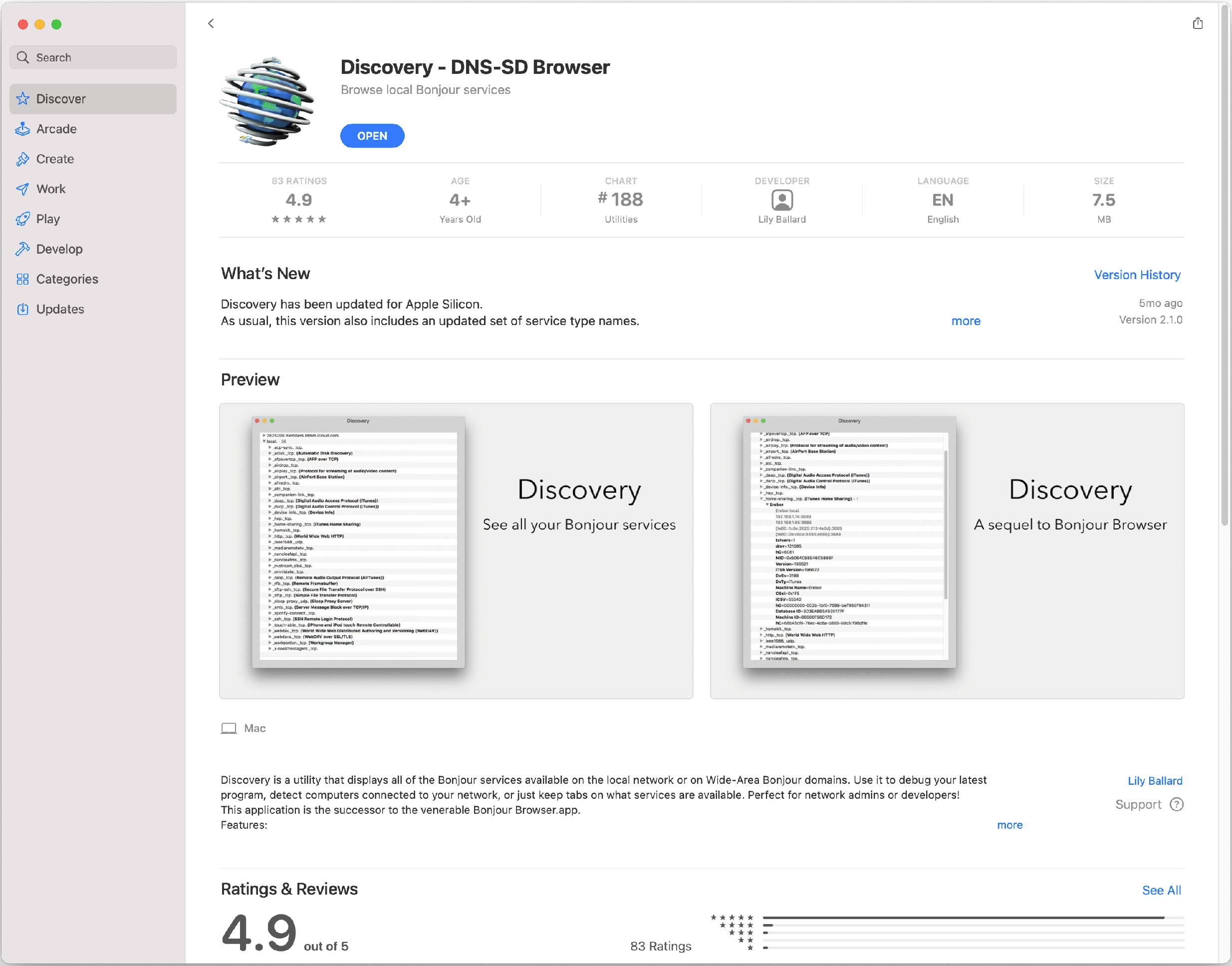
Step 1: Download Discovery DNS-SD Browser.
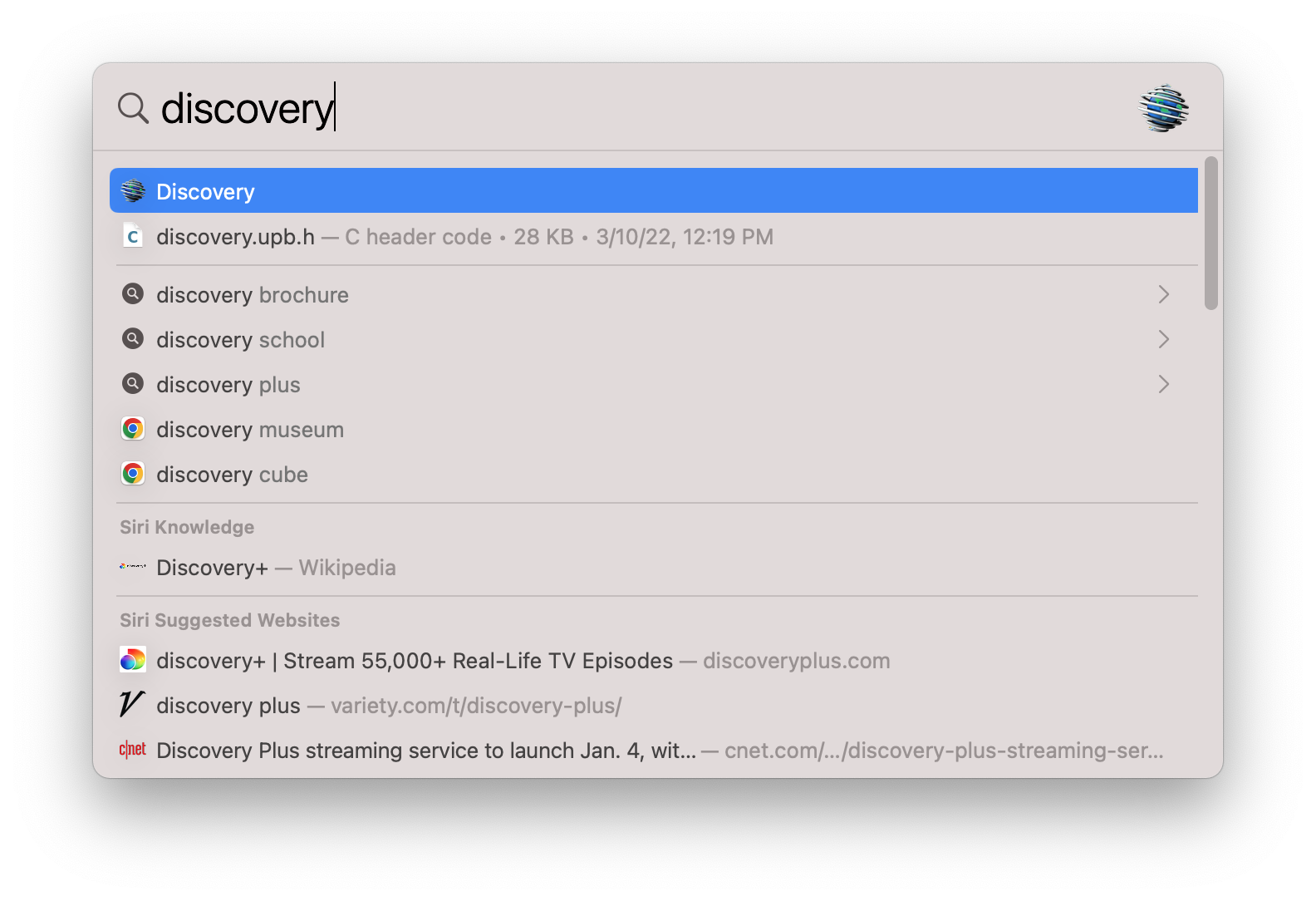
Step 2: Use Finder to locate and launch Discovery.
Step 3: The sensor appears under _ouster-lidar._tcp. Click it to view all sensor details.